Draw & Paint - Classic & Pixel
- 4.1
- Rating
- 1.00M
- Installs
- Free
- Price
 Analysis by App-foxy
My first impression of Draw & Paint - Classic & Pixel is that it understands something many art apps forget: starting should feel easy. This is a free drawing and painting app from Neli Creative, listed in the Art & Design category, and its main appeal is the choice between a classic drawing style and pixel-based artwork. I found that combination useful because it lets the app serve two very different moods without making the first session feel like a lesson in professional software.
If you are opening it because you want to sketch a small idea, color something casually, or experiment with pixel art without committing to a complicated editor, the experience is approachable. It is aimed at an Everyone audience, and the current version is 1.9.2 with a minimum operating-system requirement of Android 9. That makes it a practical option for many people using a reasonably recent Android phone or tablet.
What to expect when you open the app
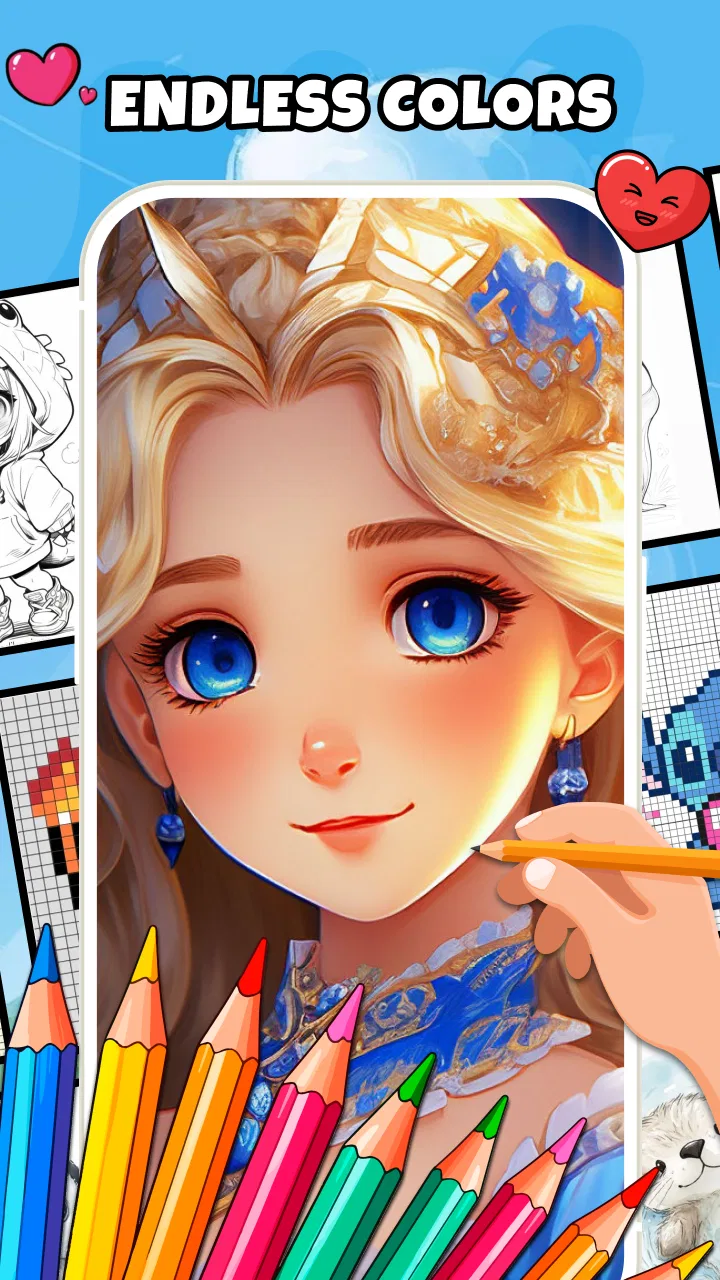
The most important choice is the kind of artwork you want to make. Classic drawing feels closer to a normal digital canvas: you think in terms of lines, shapes, coloring, and freehand marks. Pixel work asks for a different mindset. Instead of treating every stroke as a smooth gesture, you pay attention to individual blocks and the way they combine into a recognizable image.
You May Also Like

 Pandora - Music & Podcasts
Pandora’s Music Is Easy to Start, but Harder to Recover
Pandora’s strength is its low-effort path from a seed to a station. Its weak spot is how much confidence it asks you to place in connection, setup, and quiet recovery.

 AccuWeather: Weather Radar
AccuWeather Review: A Quick, Clear Forecast for Everyday Decisions
For everyday plans, the best forecast is the one you can understand quickly. AccuWeather makes rain timing, radar, and local conditions easy to act on, with a few trade-offs.

 Hill Climb Racing
Why Hill Climb Racing Still Turns Crashes Into One More Run
A tiny car, a bumpy hill and one more upgrade: Hill Climb Racing keeps resurfacing because its simple chaos makes every near-miss feel personal.

 AliExpress - Shopping App
AliExpress Makes Global Shopping Feel Personal, but Shoppers Bear the Risk
AliExpress turns a global marketplace into a pocket-sized discovery engine. Its reach is useful, its shopping loop compelling, and its trade-offs easy to miss.

 Lords Mobile: Kingdom Wars
Lords Mobile Is a Kingdom-Building Routine, Not a Quick Match
A case-by-case verdict on the building, battles, device demands, and social commitments that make Lords Mobile rewarding for some players and exhausting for others.

 PDF Scanner app - TapScanner
TapScanner Makes Paperwork Easier to Capture, Check, and Share
TapScanner makes scanning with a phone feel less like a rescue operation and more like a dependable step in getting work done. Its capture tools are useful, though not flawless.
More From Our News Desk
View All News


I would not approach this as a replacement for a full professional illustration suite. The strength here is immediacy. You can sit down with a simple idea and begin without first learning a large collection of panels, technical settings, or specialized terminology. That simplicity is especially helpful for a first-time user who wants visible progress in the opening minutes.
The app has also reached over a million installs and holds an average rating of 4.3 from around 232 ratings. Those figures suggest that it has found an audience beyond a tiny group of experimenters, although they should not be mistaken for a guarantee that every drawing workflow will suit every user. A lightweight creative app can be popular precisely because it keeps its focus narrow.
My advice is to decide what you want from the first session before touching every available control. If your goal is a quick doodle, choose the classic approach and make a simple object. If you are curious about pixel art, start with something made from clear blocks, such as a small heart, star, fruit shape, or simple character face. A complicated subject makes pixel work feel harder than it needs to be.
One useful distinction is between making art for yourself and preparing a polished asset for another project. For personal sketches, visual experiments, and small creative breaks, the app makes sense. If you need advanced layer management, detailed typography, professional color production, or a carefully controlled export pipeline, a more specialized drawing tool will probably be the better choice.
Choosing a first project that can actually succeed
New users often choose an ambitious subject because they are excited. I think that is the fastest way to become frustrated. With this app, a better first project is deliberately small: draw a mug, a leaf, a cloud, or a geometric pattern. In classic mode, concentrate on making a clean outline and adding one or two color areas. In pixel mode, reduce the subject to its most recognizable blocks before worrying about decoration.
This approach creates a meaningful result quickly. It also teaches you how the canvas responds to your finger, how much space you need for a stroke, and whether you prefer smooth marks or deliberately stepped edges. Those are practical discoveries, and they matter more than trying to use every option immediately.
The best first win is not a detailed masterpiece; it is a small image you can recognize and improve. That mindset makes the app feel encouraging rather than demanding.
Getting through the first setup without overthinking it
Because the app is free, the initial decision is less about committing money and more about deciding whether its style matches your habits. I would install it when I have a clear ten-minute experiment in mind rather than expecting it to become my complete art studio. That simple expectation prevents disappointment and gives the app a fair test.
On the first launch, take a moment to identify where the drawing area ends and where the controls begin. On a phone, your finger can cover a surprisingly large part of a small canvas. If the screen feels cramped, turning the device or moving to a tablet-sized display can make the experience more comfortable, especially for pixel work where placement matters.
Before beginning a serious sketch, make a few test marks in an empty project. Try a short line, a longer line, a curve, and a filled area if the selected mode supports that kind of action. This is not wasted time. It tells you how much pressure or movement your finger needs and helps you avoid treating the first real drawing as a calibration exercise.
I also recommend starting with a subject that has a strong silhouette. Pixel art becomes much easier when the outside shape is clear. For classic drawing, a simple silhouette gives you a chance to judge the balance of the composition before you spend time on small details. If the outline already reads well, the rest of the work becomes more manageable.
The app is suitable for casual use, but that does not mean every phone will feel equally comfortable. A smaller display can make detailed marks awkward, while a larger screen gives your hand more room. If you are using a stylus, the result may feel more controlled than finger drawing, but I would not assume that a stylus is necessary. The app’s appeal is that it can be approached with the device already in your hand.
A practical first-session routine
For a reassuring start, I would use this sequence:
Choose classic or pixel style based on the kind of image you want, not on which option sounds more advanced.
Make several throwaway marks so your hand learns the scale of the canvas.
Draw the outer shape of one simple object before adding internal details.
Add color selectively instead of filling every available space at once.
Pause and look at the image at its normal viewing size, because pixel art can look different when examined too closely.
This routine is useful because it separates the creative decisions from the mechanical ones. You first learn how the app behaves, then make the image. If you reverse those steps, a misplaced stroke can feel like a failure even when the real problem is simply unfamiliar controls.
Your first successful action: making something recognizable
For a classic drawing, I would begin with a large, uncomplicated outline. A cup is a good example: an oval opening, two sides, a curved base, and a handle. Once the outline looks right, add a contrasting color inside the shape. At that point, you already have a recognizable object, and you can decide whether to refine it or leave it as a quick sketch.
For pixel art, the workflow changes. Think of the canvas as a grid of decisions rather than a smooth sheet. Start with the largest blocky shape, then add one contrasting area that explains what the object is. A dark outline around a bright center can be more effective than many small colors. The limitation of pixel work becomes an advantage because it forces you to remove anything that does not help the image.
A useful technique is to work from the outside inward. Establish the silhouette first, then add the main color, then place only the details that survive at a glance. This prevents a common beginner mistake: spending time on tiny features before the overall shape is stable. In a small pixel image, the outline often communicates more than the interior decoration.
When drawing with a finger, I find it helpful to use slower, shorter movements for edges and to lift the finger between separate parts. Long sweeping gestures can be difficult to control on a phone. For a classic sketch, this may produce a more deliberate result. For pixel art, short taps or carefully placed movements help preserve the block-based look instead of creating accidental visual noise.
Another practical tip is to keep the first color choices limited. Using too many colors early can hide whether the shape itself works. Try a main color, a darker supporting color, and perhaps a light accent. Once the object reads clearly, you can experiment with more expressive combinations. This is particularly valuable when you are learning the difference between a drawing that is technically busy and one that is visually clear.
The first meaningful success should be something you would happily show to a friend, even if it is simple. That could be a tiny pixel badge, a colored doodle, or a small icon for a personal project. The point is not to prove that the app can replace a studio tool. The point is to discover whether its direct approach makes you want to keep drawing.
Turning a quick sketch into a repeatable habit
I can see this app working well in short sessions. You might use it while waiting for an appointment to sketch a logo idea, make a tiny greeting image, or explore a character concept. Because the classic and pixel styles encourage different kinds of thinking, switching between them can also prevent a creative block. A smooth sketch may help you explore form, while a pixel version can force you to simplify the same idea.
One of the less obvious benefits is that pixel work can improve your editing discipline. If an image has limited space, every mark needs a reason. That habit carries back into classic drawing: you become more aware of unnecessary lines, weak silhouettes, and details that do not improve recognition. In that sense, the two styles are not just separate options; they can support each other.
Common confusion and the limits worth knowing
The biggest possible misunderstanding is expecting “classic” and “pixel” to behave like two professional production environments. I see them better as two accessible ways to create. The classic side is suited to freehand ideas and casual painting, while pixel mode is strongest when you accept its deliberate, block-by-block character. Neither approach automatically turns a rough concept into finished commercial artwork.
Pixel art can also feel less forgiving than it first appears. A single misplaced block may change the expression of a tiny character or make an object lose its balance. If you find yourself repeatedly correcting small areas, zoom out and judge the whole image instead of staring at one corner. Pixel designs are meant to be read as a complete pattern, not only as individual marks.
Classic drawing has its own friction. Finger input is naturally less precise than a mouse or a pressure-sensitive stylus, particularly when you are trying to make a long, smooth curve. I would use this mode for expressive sketches and compact illustrations rather than expecting the first attempt at detailed line work to look perfectly controlled.
Another point to keep in mind is workflow depth. People who regularly use advanced alternatives in the Art & Design category may miss sophisticated controls, extensive brush systems, or production-oriented organization. That is not necessarily a flaw in this app; it is the trade-off that keeps the entry point friendly. If your work depends on complex editing, exact technical output, or a large multi-stage project, choosing a more powerful editor will save time.
It is also worth separating “free” from “effortless.” You do not pay to begin, but you still need to learn how to compose a small image and control your hand on a touchscreen. The app lowers the barrier to trying, not the need to make artistic decisions. I consider that a healthy limitation because it leaves room for the user’s choices instead of promising automatic results.
Who should use it, and who should skip it
I would recommend it to a beginner who wants a low-pressure place to draw, a parent looking for an age-appropriate creative activity, or an experienced artist who wants a quick pocket sketchpad with a pixel option. It also suits anyone curious about pixel art but unwilling to begin with a complicated desktop workflow.
It is less suitable for someone who already knows they need a complete illustration pipeline. If you work with layered compositions, advanced retouching, precise lettering, or demanding client deliverables, the simplicity that helps beginners may become a restriction. In that situation, a dedicated professional app is the more sensible choice, even if it takes longer to learn.
For casual creators, the decision comes down to how much structure you want. If you prefer an app that lets you start drawing quickly and keeps the creative surface uncluttered, this one is appealing. If you enjoy adjusting every technical aspect of a brush or building large, carefully organized projects, you may outgrow it.
The next step after your first drawing
Once you have made one recognizable image, resist the urge to immediately create something much larger. Instead, repeat the same subject in both styles. Draw a simple fruit or symbol in classic mode, then rebuild it as pixel art. This comparison will show you which approach feels more natural and will reveal how much information can be removed without losing the subject’s identity.
A second useful exercise is to create a small set of related images: three expressions, several color variations, or a few versions of the same object. This is more instructive than making one isolated picture because it teaches consistency. You begin to notice whether your outlines, proportions, and color choices remain coherent from one image to the next.
If you want to use the app for everyday planning, try sketching a room arrangement, a handmade-card idea, or a rough icon before building the final version elsewhere. The quick canvas is valuable at the thinking stage, where speed matters more than polish. I would treat it as a place to test ideas, not as a reason to abandon every other creative tool.
For pixel art specifically, keep a reference beside you but simplify it aggressively. Do not attempt to copy every texture. Identify the subject’s largest light and dark areas, then build from those. This workflow makes the limited resolution work in your favor and gives you a clearer result than tracing tiny details one by one.
The developer, Neli Creative, has positioned the app around a straightforward creative experience rather than a long technical learning curve. The release date is May 13, 2026, and the current version is 1.9.2, so users should expect the app to be considered in the context of that release rather than as a mature replacement for every established art platform. Its free price and Everyone age rating make trying it uncomplicated.
After spending time with the two drawing approaches, my opinion is positive but specific. I like this app most as a friendly starting point, a quick sketch companion, and a simple way to explore pixel design. I would not choose it for demanding illustration production, but that is not where it makes its strongest case.
If you are opening it for the first time, begin with one small object, limit your colors, and judge the whole image instead of chasing tiny imperfections. That path gives you the best chance of understanding what the app does well. For beginners, the real advantage is the short distance between opening the canvas and seeing an idea become visible.
After that first success, you can decide whether to stay with classic drawing, explore pixel art more deeply, or use both as complementary exercises. For a free Art & Design app with a clear focus and an approachable entry point, I think it is worth trying—especially if you want a creative tool that invites you to make something before asking you to master it.
FAQs for Draw & Paint - Classic & Pixel
01What features does Draw & Paint - Classic & Pixel offer?
Draw & Paint - Classic & Pixel provides a wide range of features including classic drawing tools, pixel art capabilities, multiple brush sizes, and layers. You can also find customizable color palettes, undo/redo functionality, and export options to share your creations. It's designed to cater to both traditional artists and pixel enthusiasts.
02Is Draw & Paint - Classic & Pixel suitable for beginners?
Yes, the app is user-friendly and suitable for beginners. It offers intuitive interfaces and tutorials to help newcomers get started. With a variety of tools and easy navigation, users at any skill level can create beautiful artwork without feeling overwhelmed.
03Can I use Draw & Paint - Classic & Pixel without an internet connection?
Yes, Draw & Paint - Classic & Pixel can be used offline once downloaded. This allows you to work on your creations anytime and anywhere, without needing an active internet connection. However, some features like cloud saving might require internet access.
04Does Draw & Paint - Classic & Pixel support cloud storage?
Yes, the app supports cloud storage, allowing you to save your work to the cloud. This ensures that your creations are safe and accessible from different devices. You can easily continue your projects without losing any progress.
05Is Draw & Paint - Classic & Pixel available for both Android and iOS?
Draw & Paint - Classic & Pixel is available for both Android and iOS platforms. You can download it from the Google Play Store or the Apple App Store. It ensures cross-platform compatibility so users can enjoy the app on their preferred devices.
Pros
- Intuitive interface for easy navigation.
- Wide variety of brushes and tools.
- Supports high-resolution exports.
- Customizable canvas sizes.
- Includes pixel art features.
Cons
- Limited layer options.
- Occasional lag on older devices.
- No built-in tutorials.
- Ads can be intrusive.
- In-app purchases required for extras.

Draw & Paint - Classic & Pixel
Gallery